
My Ghostty Setup - Recreating the Little Things I Liked About Warp
I switched to Ghostty because of how simple it presented. It is fast, stays out of the way, and feels like a terminal rather than a terminal trying to become an IDE.
But after using Warp for a while, I had grown used to a handful of small conveniences: inline command suggestions, fuzzy history, nicer completion, quick project navigation, syntax highlighting, and an easy way to copy a command's output.
I only meant to restore the faint command suggestions I missed most. Instead, I ended up rebuilding parts of my Zsh setup, and making my directory navigation smarter.
That small add became a bit of a rabbit hole.
Most of the magic lives in Zsh
What I realized early on after many Google searches of 'autocomplete in Ghostty' was that most of what I needed was not really Ghostty configuration. Ghostty runs my shell, which in my case is Zsh, so features such as suggestions, history search, completion, and directory navigation could all be added at the shell level.
The first thing I wanted back was the inline suggestion. If I had previously run:
npm run devand later started typing:
npm r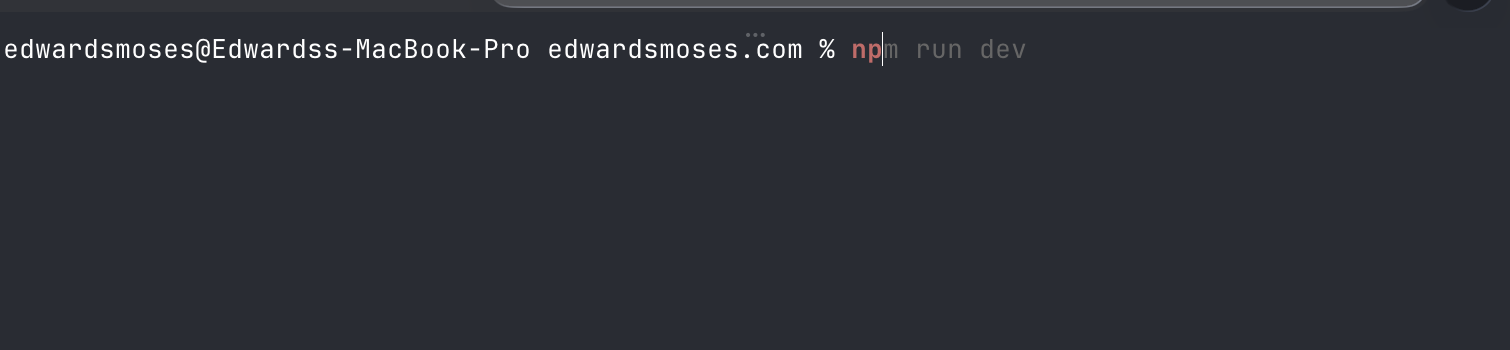
I wanted the rest of the command to appear faintly ahead of the cursor, ready to accept with the right arrow ( -> ) .
I initially installed zsh-autocomplete, assuming that was what I needed. It did provide autocomplete, but as a live list of possible completions. Useful, just not the interaction I was missing.
What I wanted was ghost text.
Adding inline suggestions
The plugin that provides that behavior is zsh-autosuggestions:
brew install zsh-autosuggestionsI added it to my .zshrc with a strategy that checks both my command history and available completions:
ZSH_AUTOSUGGEST_STRATEGY=(history completion)
source /opt/homebrew/share/zsh-autosuggestions/zsh-autosuggestions.zsh
That was exactly what I had been looking for. Commands I had used before began appearing ahead of the cursor, and pressing the right arrow ( -> ) accepted the suggestion.
While I was there, I also gave the plugin more history to work with:
HISTFILE="$HOME/.zsh_history"
HISTSIZE=50000
SAVEHIST=50000

setopt SHARE_HISTORY
setopt HIST_IGNORE_DUPS
setopt HIST_IGNORE_SPACE
setopt HIST_REDUCE_BLANKS
This keeps a larger history, shares it between open shell sessions, and cuts down on duplicate or unhelpful entries. Autosuggestions are only as useful as the history behind them, so the two changes made sense together.
It was a small addition, but it immediately restored the interaction I missed most from Warp.
Catching mistakes with syntax highlighting
The next addition was zsh-syntax-highlighting:
brew install zsh-syntax-highlightingI source it near the end of my .zshrc, after the other interactive shell tools have been initialised:
source /opt/homebrew/share/zsh-syntax-highlighting/zsh-syntax-highlighting.zshNow, when I type a valid command such as:
git statusZsh recognises git. If I accidentally type:
gti statusthe mistake is visually obvious before I press Enter.
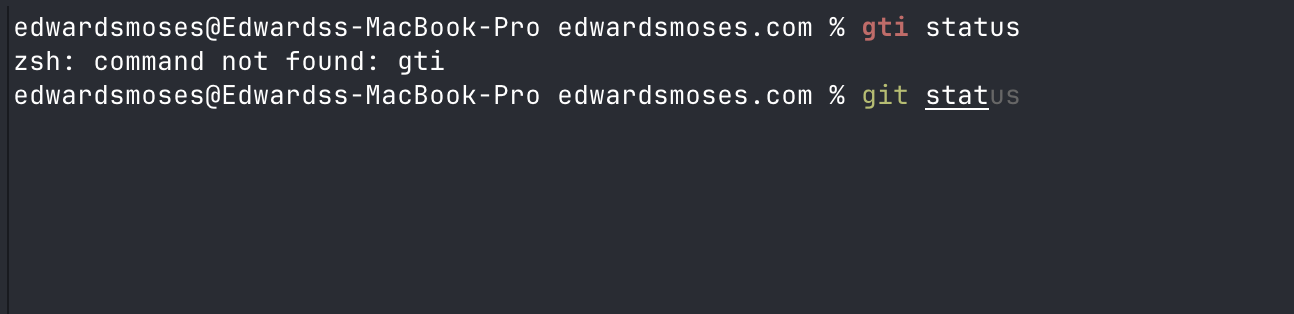
gti command is highlighted in red, while the valid git command is recognised immediately.Zsh also has a built-in correction option:
setopt CORRECTThat can stop after a typo and ask whether I meant another command:
zsh: correct 'gti' to 'git' [nyae]?I did not want my shell interrupting me with another prompt. Syntax highlighting gives me the useful part—the warning—while leaving the decision to me.
Fuzzy history search with fzf
Next came fzf:
brew install fzfI enabled its Zsh integration in .zshrc:
source <(fzf --zsh)The first improvement I noticed was Ctrl-R. Zsh already lets me search through command history, but fuzzy search is much more forgiving.
If I vaguely remember running a command such as:
npx expo run:ios --deviceI do not need to recall it exactly or keep pressing the up arrow. I can press Ctrl-R, type something as loose as expo ios, and let fzf find the full command.
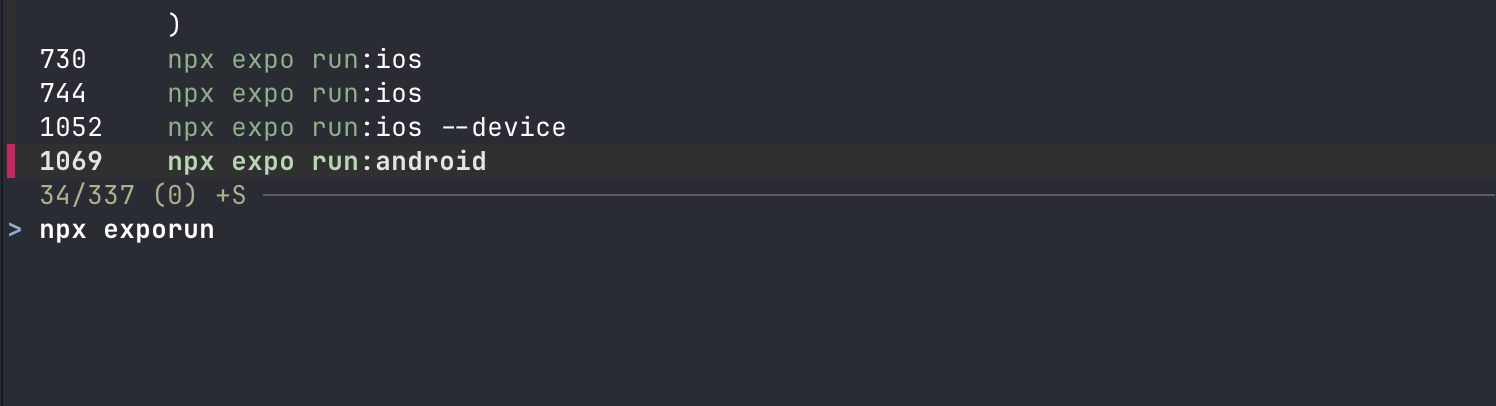
Ctrl-R opens fuzzy history search, where a loose query can find much longer commands.That alone made fzf worth installing.
Making Tab completion easier to scan
I then added fzf-tab, which applies the same fuzzy-selection idea to Zsh completions:
git clone https://github.com/Aloxaf/fzf-tab ~/.fzf-tabMy completion setup became:
autoload -Uz compinit
compinit

source <(fzf --zsh)
source "$HOME/.fzf-tab/fzf-tab.plugin.zsh"
Now a command such as:
git checkout <Tab>can show an interactive fuzzy picker for branches instead of printing a wall of possibilities into the terminal. The same idea works for files, directories, and other Zsh completions.
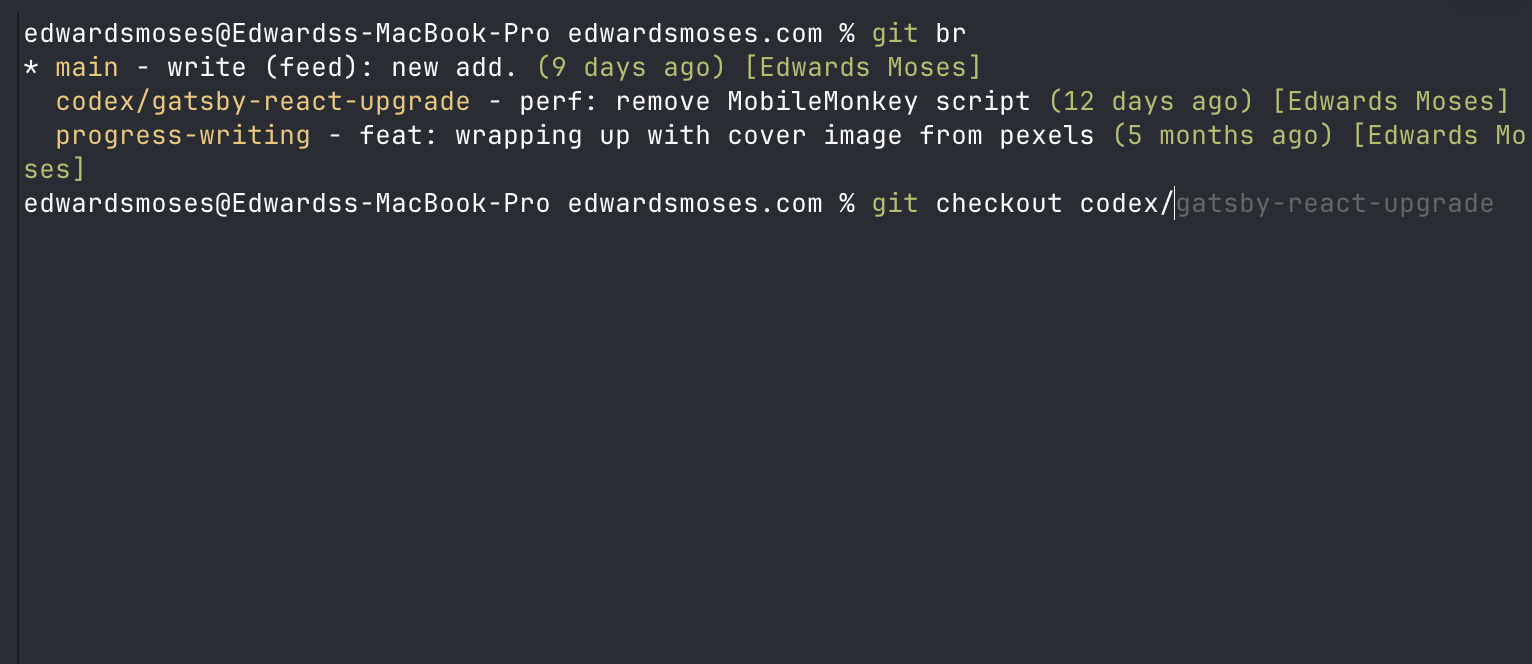
fzf-tab makes Git branches easy to scan, then the inline suggestion completes the checkout command.Adding directory previews with eza
I was already improving completion, so I also installed eza:
brew install ezaeza is a modern replacement for ls, and I added a few aliases for the views I use most often:
alias ls="eza"
alias ll="eza -la --git"
alias la="eza -a"
alias tree="eza --tree"
The --git flag makes ll especially useful inside a project, while tree -L 2 gives me a quick look at its structure.
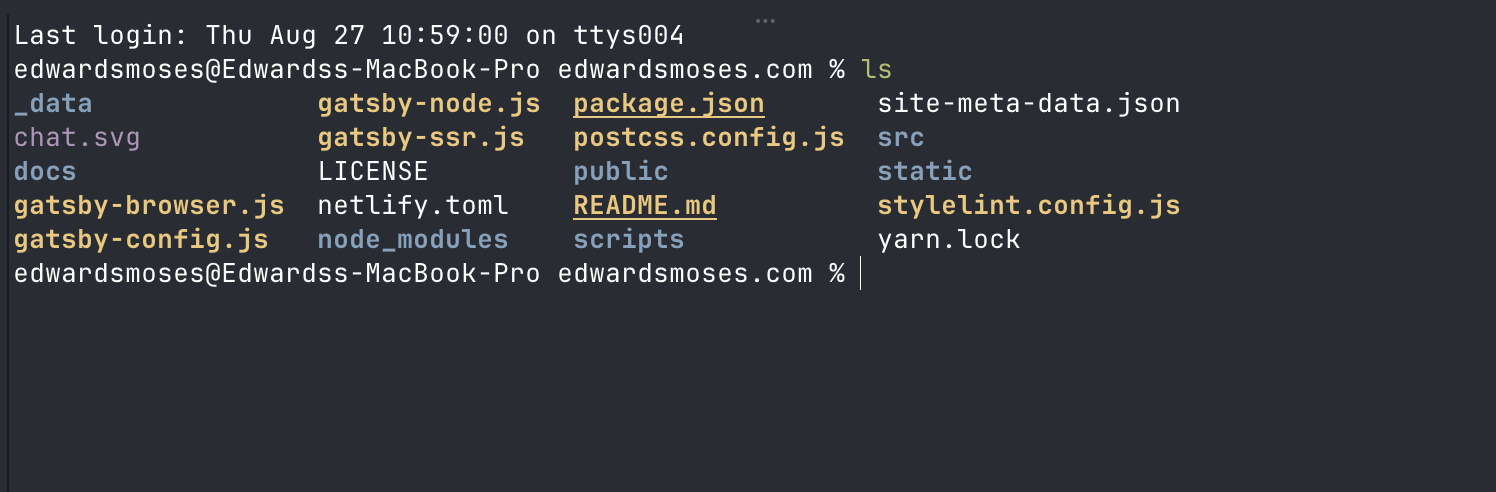
eza adds colour and clearer visual grouping to an ordinary project directory listing.I also connected eza to fzf-tab:
zstyle ':fzf-tab:complete:cd:*' \
  fzf-preview 'eza -1 --color=always $realpath'
When completing a directory, I can now move through the suggestions and see what each directory contains before choosing it.
Entirely optional. Very nice.
Making cd smarter with zoxide
I had already been using zoxide, and it remains one of my favourite terminal utilities. My setup starts with:
eval "$(zoxide init zsh --cmd cd)"Initialising it with --cmd cd gives my normal cd command zoxide's smarter, frecency-based behaviour. Instead of typing a complete path, I can type part of a directory I have visited before and jump there from anywhere.
That is different from normal Tab completion. Tab looks for paths relative to my current location; zoxide remembers directories globally and ranks them based on how often and how recently I use them.
While putting this setup together, though, I found a gap between smart matching and fuzzy matching.
Imagine I have these two projects:
client-android
client-ios
I wanted to be able to type:
cd c-androidor:
cd c-iosand have the shell work out which project I meant. Zoxide could jump to either project when my query matched its path closely enough, but those abbreviated forms returned:
zoxide: no match foundZoxide is very good at remembering and ranking directories, but its matching is intentionally stricter than the typo-tolerant fuzzy search I had in mind.
Letting fzf search zoxide's directory database
Zoxide already had the directory knowledge:
zoxide query --listAnd fzf already had the fuzzy matcher. Combining the two seemed obvious:
zoxide query --list | fzfMy first fallback tried zoxide normally, then passed every known directory to fzf if zoxide could not resolve a simple query.
It worked, but not quite how I wanted. Searching for c-android opened an interactive picker containing the project root and several directories inside it. The first result was clearly the one I meant, so stopping to ask me felt unnecessary.
I tried adding:
--select-1I had assumed that meant "select the best result." It actually means "select automatically when there is only one result." I had several results, so the picker still opened.
Ranking the matches without opening a picker
The missing piece was fzf --filter. Instead of opening the interactive interface, --filter performs the fuzzy match, prints the ranked results, and exits.
That made the fallback:
result="$(
  command zoxide query --list --exclude "$PWD" |
    fzf \
      --filter="$1" \
      --scheme=path |
    head -n 1
)"
fzf ranks all known paths against the query, and head -n 1 takes the best match. There is no picker and no extra prompt.
The complete navigation setup became:
eval "$(zoxide init zsh --cmd cd)"

function cd() {
  # Keep normal zoxide behaviour as the first choice.
  if __zoxide_z "$@" 2>/dev/null; then
    return
  fi

  # If zoxide cannot resolve a simple query,
  # fuzzy-match against every directory it knows.
  if (( $# == 1 )) && [[ "$1" != */* ]]; then
    local result

    result="$(
      command zoxide query --list --exclude "$PWD" |
        fzf \
          --filter="$1" \
          --scheme=path |
        head -n 1
    )"

    if [[ -n "$result" ]]; then
      builtin cd -- "$result"
      return
    fi
  fi

  # Nothing matched, so show zoxide's original error.
  __zoxide_z "$@"
}
Now cd c-android takes me to client-android, and cd c-ios takes me back to client-ios.
Zoxide still handles the directory memory and all the normal matches. fzf only steps in when zoxide gives up, and the fallback stays invisible.
That may be my favourite tweak in the entire setup.
Copying a command's output
There was one more Warp feature I had not initially realised I missed. Warp treats commands and their output as blocks, which makes copying the result of a command much easier than dragging the mouse through hundreds of lines.
I assumed I would have to give that up in Ghostty, but its shell integration already understands command boundaries.
On macOS, I can hold Cmd and triple-click anywhere in a command's output. Ghostty selects the whole output block, and with copy-on-select enabled, it is immediately available on my clipboard.
Cmd + triple-clickThat turns copying a long build log from a careful click-and-drag exercise into one gesture.
It was hiding in plain sight.
The relevant parts of my .zshrc
After all of that, the parts of my configuration responsible for the terminal experience look like this:
# ============================================================
# History
# ============================================================

HISTFILE="$HOME/.zsh_history"
HISTSIZE=50000
SAVEHIST=50000

setopt SHARE_HISTORY
setopt HIST_IGNORE_DUPS
setopt HIST_IGNORE_SPACE
setopt HIST_REDUCE_BLANKS


# ============================================================
# Completion
# ============================================================

autoload -Uz compinit
compinit

source <(fzf --zsh)
source "$HOME/.fzf-tab/fzf-tab.plugin.zsh"

zstyle ':fzf-tab:complete:cd:*' \
  fzf-preview 'eza -1 --color=always $realpath'


# ============================================================
# Navigation
# ============================================================

eval "$(zoxide init zsh --cmd cd)"

function cd() {
  if __zoxide_z "$@" 2>/dev/null; then
    return
  fi

  if (( $# == 1 )) && [[ "$1" != */* ]]; then
    local result

    result="$(
      command zoxide query --list --exclude "$PWD" |
        fzf \
          --filter="$1" \
          --scheme=path |
        head -n 1
    )"

    if [[ -n "$result" ]]; then
      builtin cd -- "$result"
      return
    fi
  fi

  __zoxide_z "$@"
}


# ============================================================
# Aliases
# ============================================================

alias ls="eza"
alias ll="eza -la --git"
alias la="eza -a"
alias tree="eza --tree"


# ============================================================
# Interactive shell
# ============================================================

ZSH_AUTOSUGGEST_STRATEGY=(history completion)
source /opt/homebrew/share/zsh-autosuggestions/zsh-autosuggestions.zsh

# Keep syntax highlighting last.
source /opt/homebrew/share/zsh-syntax-highlighting/zsh-syntax-highlighting.zsh
Wrapping up
After switching to Ghostty from Warp, I realized how much I missed those small interactions:
zsh-autosuggestionsprovides the inline ghost text.zsh-syntax-highlightingcatches mistakes without interrupting me.fzfmakes command history forgiving.fzf-tabmakes completion easier to scan.zoxide, with anfzffallback, makes project navigation feel almost effortless.- Ghostty's shell integration makes command output easy to select and copy.
None of these changes are particularly dramatic on thier own. Together, they bring back the small conveniences I cared about without changing what attracted me to Ghostty in the first place.
The result still feels like a simple terminal. It just fits the way I work a little better.

Edwards Moses
Web & Mobile — React & React Native Consultant
I'm Edwards, based in Lagos, Nigeria.
Freelancer Software Developer — collaborating with teams to craft extraordinary products.
From conception through to completion, I find immense joy in witnessing the evolution of an idea into a fully realized product in the hands of users. Check out my projects and articles to see what I've been up to lately.
Ready to bring your ideas to life? Let's connect!
Comments